

How to Generate Unlimited Long Videos Using Grok (1+ Minute Videos)
Creating long, consistent AI videos usually comes with one big problem: characters change between scenes.
The good news? With the right workflow—and one simple trick—you can generate multi-scene videos that stay visually consistent from start to finish.
In this guide, I’ll walk you through a step-by-step process using ChatGPT, Grok, free voiceover tools, and a basic video editor.
What You’ll Need
Before we start, make sure you have access to these tools:
-
ChatGPT (for story + prompt generation)
-
Grok (image-to-video generation)
-
Google AI Studio (free voiceover)
-
CapCut or any video editor
No paid tools required.
Step 1: Story & Prompt Generation
Before creating visuals, you need a solid story and clean prompts.
What to do
-
Ask ChatGPT to write a short story
-
Example style: Disney-Pixar, kid-friendly, cinematic
-
-
Limit the number of characters to 1–2 max
-
Ask ChatGPT to:
-
Break the story into clear scenes
-
Generate a separate image prompt for each scene
-
Why this matters
Fewer characters = better visual consistency.
Clear scene prompts = smoother video generation later.
Example output from ChatGPT:
-
Scene 1: Character introduction
-
Scene 2: Character action
-
Scene 3: Resolution or ending

Step 2: Generate the First Scene in Grok
This first scene sets the visual foundation for the entire video.
What to do
-
Open Grok and switch to Image Mode
-
Paste the prompt for Scene 1
-
Generate multiple variations
-
Pick your favorite result
-
Click “Make Video”
-
Set the aspect ratio to 16:9
Once exported, this clip becomes Scene 1 of your final video.

Step 3: The “Last Frame” Hack (Critical Step)
This is the most important step in the entire process.
Why this works
Grok uses reference images to maintain visual consistency.
By feeding it the last frame of the previous scene, you lock in the character’s appearance.
How to do it
-
Capture the last frame
-
Play Scene 1 to the very end
-
Right-click and copy the final frame
-
-
Disable auto-generation
-
Go to Grok Settings → Behavior
-
Turn OFF Automatic Generation
-
-
Combine image + prompt
-
Paste the last frame image into the prompt box
-
Paste the Scene 2 prompt below it
-
-
Generate the next scene
-
Click Generate and then Make Video
-
Repeat this process for every scene:
-
Scene 1 last frame → Scene 2
-
Scene 2 last frame → Scene 3
-
And so on

Step 4: Generate a Free Voiceover
Now it’s time to bring your video to life with narration.
Tool: Google AI Studio (Free)
What to do
-
Select Single Speaker Audio
-
Paste your full story script
-
Remove scene titles and timestamps
-
-
Generate and download the audio file
This gives you a clean, natural-sounding voiceover without paying for premium tools.

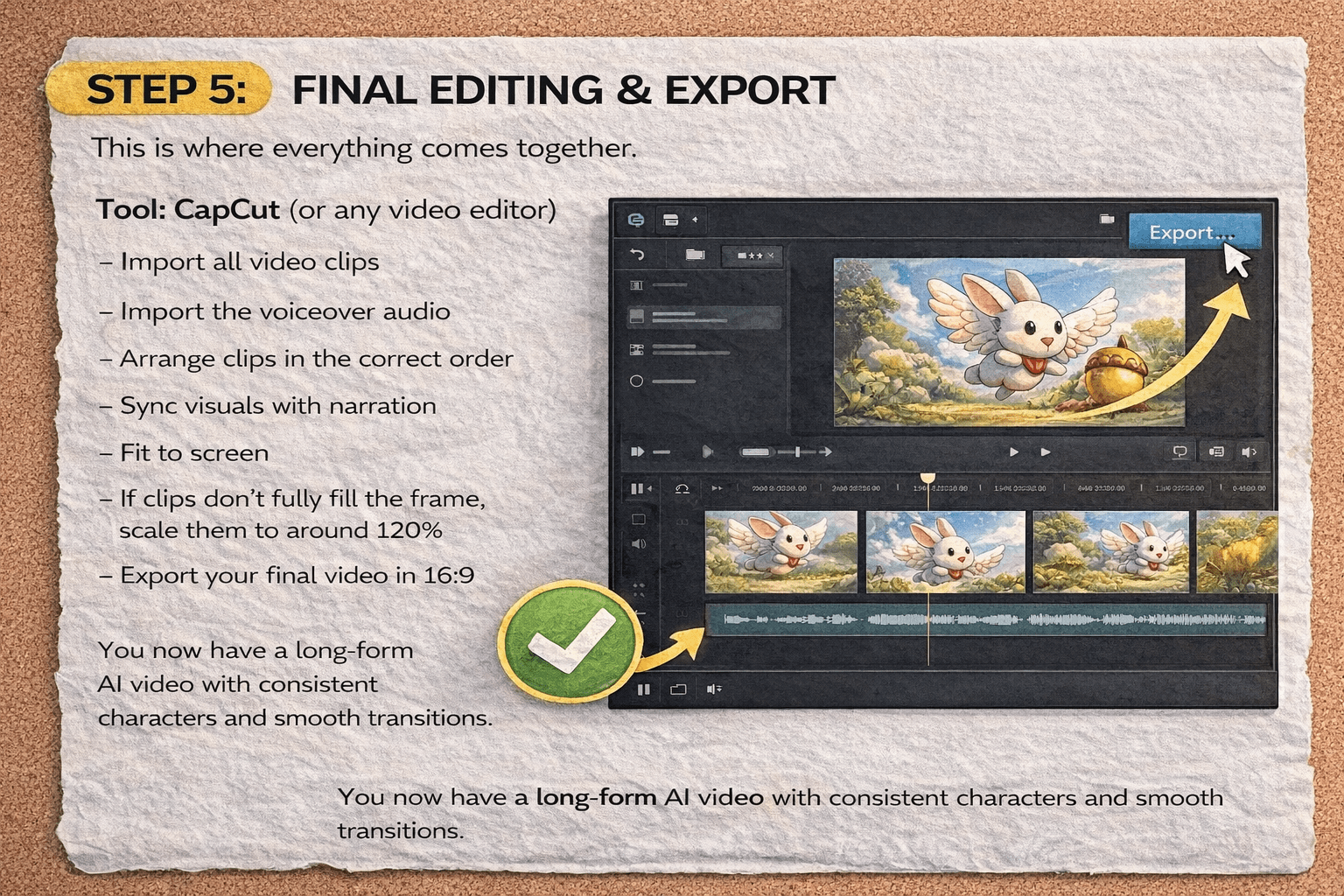
Step 5: Final Editing & Export
This is where everything comes together.
Tool: CapCut (or any video editor)
What to do
-
Import all video clips
-
Import the voiceover audio
-
Arrange clips in the correct order
-
Sync visuals with narration
-
Fit to screen
-
If clips don’t fully fill the frame, scale them to around 120%
-
-
Export your final video in 16:9
You now have a long-form AI video with consistent characters and smooth transitions.
Final Thoughts
By using the last frame reference method, you can chain scenes together and create unlimited long AI videos that actually look cohesive.
This workflow works great for:
-
YouTube storytelling channels
-
Kids’ content
-
Educational videos
-
Short films
-
AI experiments and demos
Once you’ve done it a few times, the process becomes fast and repeatable.
Frequently Asked Questions
Can this work for videos longer than 5 minutes?
Yes. As long as you keep chaining scenes using the last frame, you can keep extending the video.
Do I need paid tools?
No. Everything in this workflow can be done with free tools.
Does this work with different styles?
Yes—cinematic, cartoon, anime, realistic styles all work. Just keep prompts consistent.


